The Breakthrough: Free, Local AI Speech on Mac
For years, readers and developers who wanted to turn long-form text, research papers, or books into audio were stuck with an unfortunate tradeoff:
- Cloud-based text-to-speech (such as ElevenLabs or OpenAI) sounds remarkably expressive, but locks you into expensive monthly subscriptions, introduces 1.5–3 second latency per chunk, requires non-stop internet access, and sends your private documents to third-party servers.
- Legacy built-in system voices are local, but their robotic and monotonic cadence causes quick cognitive fatigue during extended reading sessions.
As reported by Digital Trends, Ollama has officially expanded beyond large language models to bring free, local text-to-speech to the Mac. Powered by Phonon, an open model family built by Gradium, Mac users can now generate lifelike speech on-device with zero cloud dependencies, complete offline privacy, and zero subscriptions.
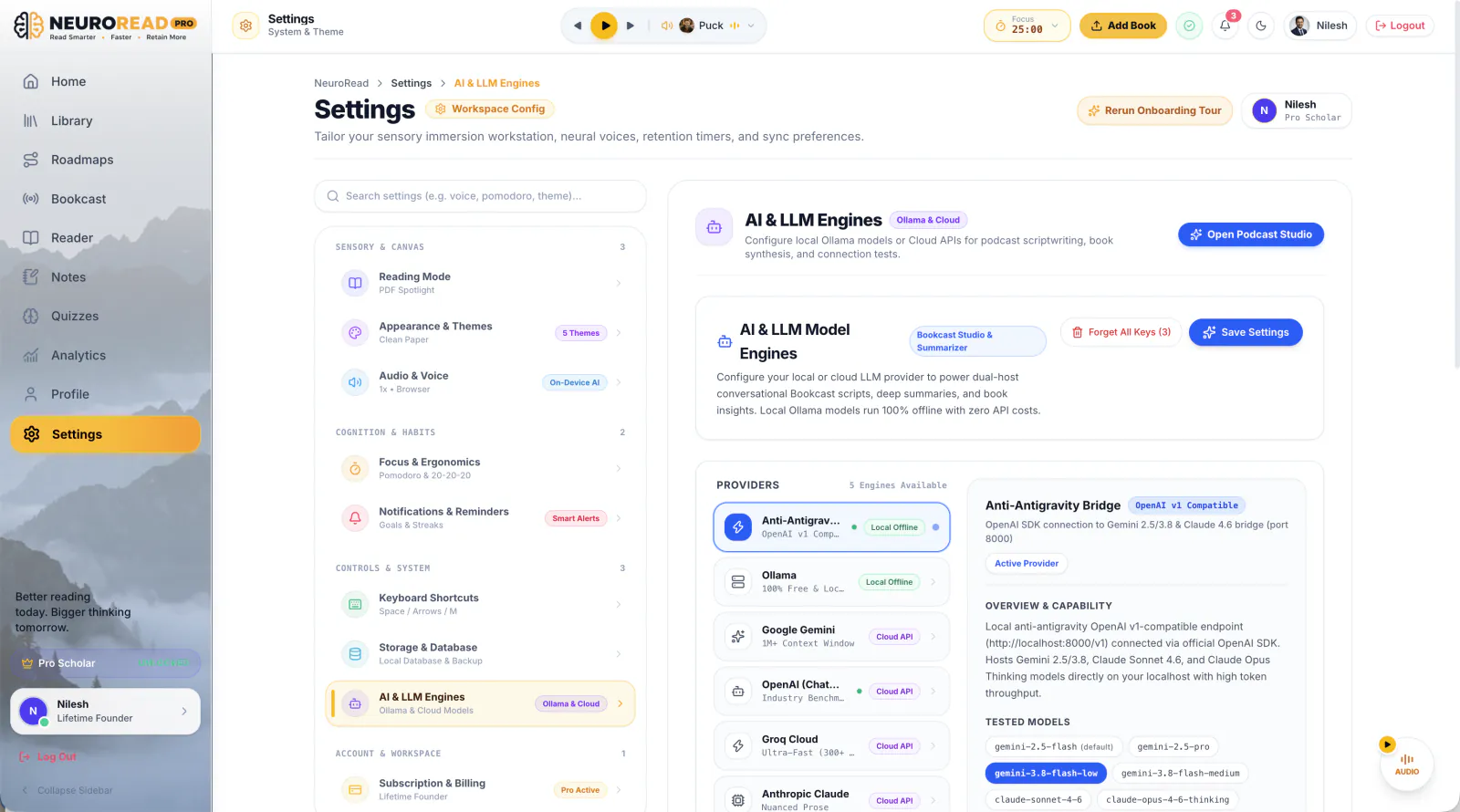
And best of all: NeuroRead Pro integrates natively with Ollama Phonon out of the box.
What is Ollama and How Does Phonon Work?
Ollama has become the open-source standard for running AI models locally across macOS, Linux, and Windows. By packaging complex neural weights into streamlined CLI commands and exposing an OpenAI-compatible API on http://localhost:11434, Ollama makes running local AI as simple as running a shell command.
With its 0.40.11+ release, Ollama introduced native support for text-to-speech models on macOS, starting with Phonon.
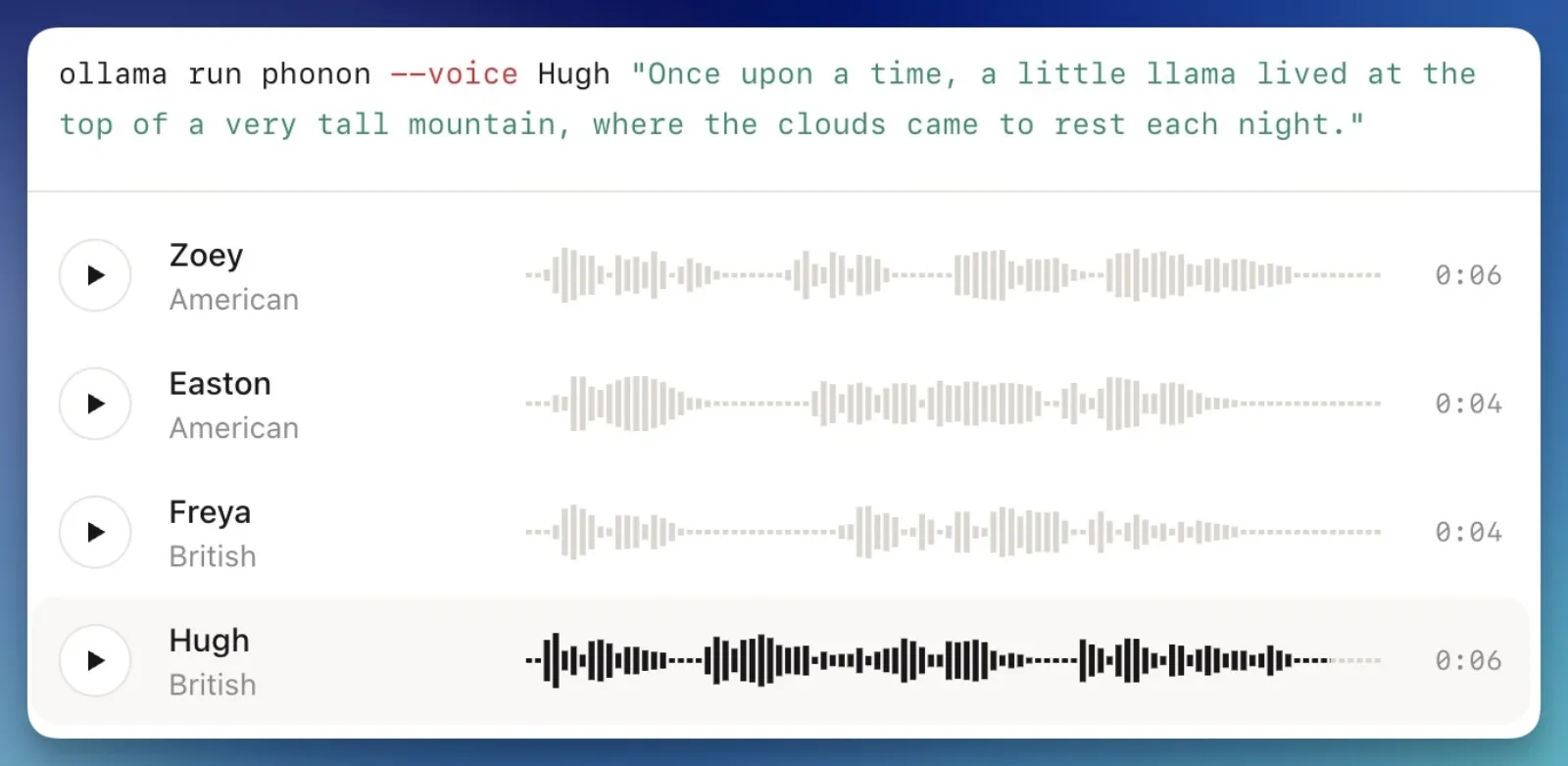
Key Features of Ollama Phonon:
- Gradium Phonon Model Family: A lightweight neural architecture designed specifically for low-latency voice synthesis.
- Distinct Voice Personas: Phonon includes human-sounding character personas with American and British accents:
- Zoey: Warm, balanced, and conversational—ideal for fiction and general nonfiction.
- Freya: Articulate, precise, and crisp—perfect for dense technical books, code documentation, and research papers.
- Easton: Deep, resonant, and authoritative—great for philosophy, business, and historical biographies.
- Hugh: Classic British cadence with steady pacing.
- Multilingual Reading: In addition to English, Ollama provides language-tuned models for Spanish, French, German, and Portuguese, as well as the unified
phonon:multilingualtag. - Open & Transparent Licensing: The English Phonon model is completely open and free for both personal and commercial use under the Apache 2.0 license, while the multilingual variants are available for noncommercial personal reading.
The Apple Silicon Advantage: 35% Faster with Apple MLX
Why is this feature launching first on Mac? Because of Apple Silicon’s Unified Memory Architecture (UMA) and Apple’s open-source MLX machine learning framework.
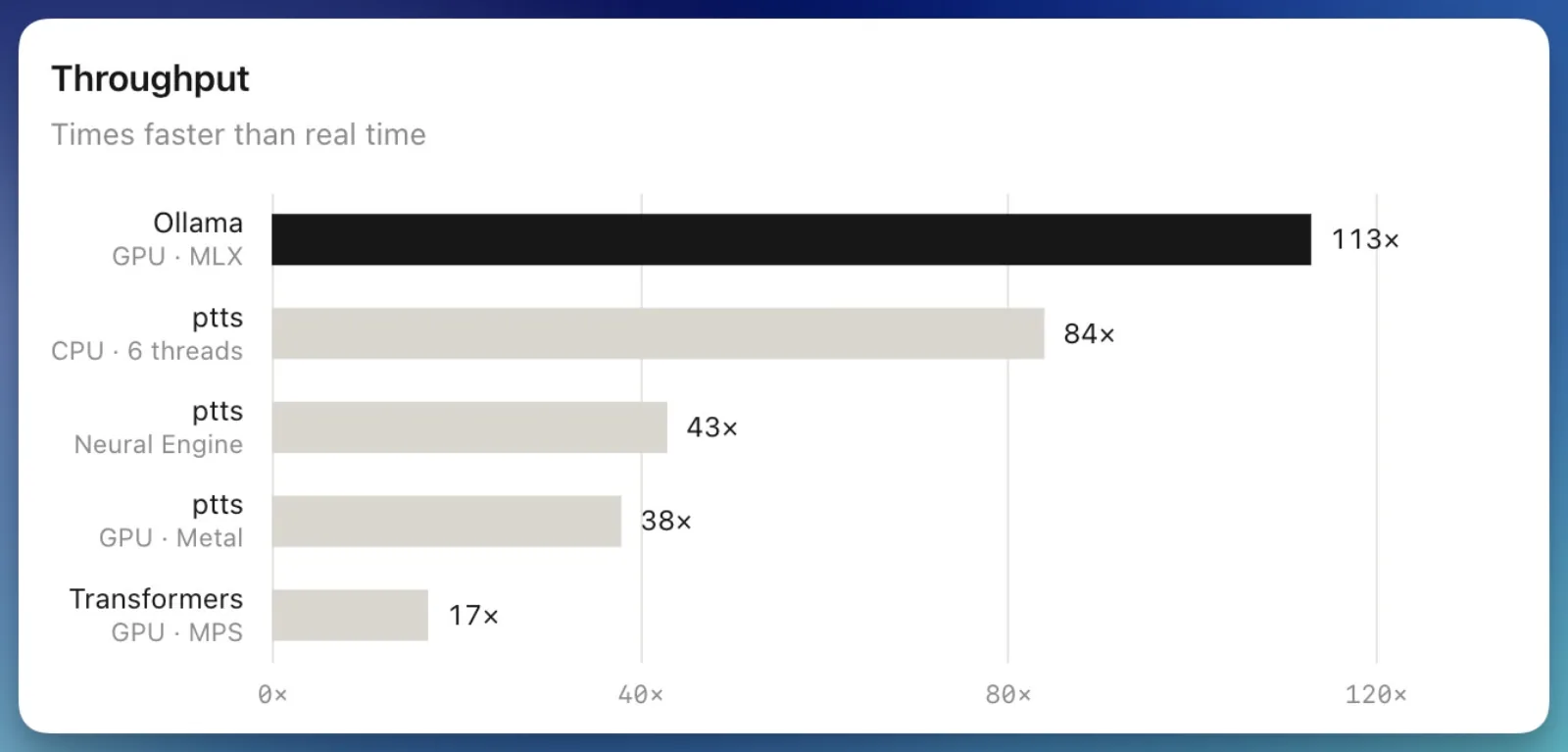
According to benchmark data highlighted by Digital Trends:
- Thanks to deep MLX framework integration, Ollama runs Phonon 35% faster on Apple Silicon than Gradium's own native runtime, with zero loss in audio fidelity or word accuracy.
- On M1, M2, M3, M4, and M5 processors, inference reaches 15x to 25x realtime speed.
- A full 30-second paragraph synthesizes in under 200 milliseconds, allowing playback to begin streaming immediately after the first sentence.
- Because it runs efficiently on the Neural Engine and unified GPU cores, background synthesis consumes less than 4% of your CPU, preserving your MacBook battery for all-day reading sprints.
3-Minute Quickstart: Connect Ollama Phonon in NeuroRead Pro
Setting up Ollama Phonon with NeuroRead Pro requires zero configuration files, zero Python environments, and no Docker containers.
Step 1: Install Ollama on macOS
If you don't already have Ollama installed, open your terminal and install via Homebrew, or download the official macOS application:
# Option A: Install via Homebrew
brew install ollama

# Option B: Download direct installer from https://ollama.com
Launch Ollama from your Applications folder. You will see the Ollama menu bar icon confirming that the daemon is active on port 11434.
Step 2: Pull the Phonon Voice Model
In your macOS Terminal, pull the English model:
ollama pull phonon(The model is approximately 180MB and downloads in about 15 seconds.)
#### Optional: Pull Multilingual Support
If you read books or articles in Spanish, French, German, or Portuguese, run:
ollama pull phonon:multilingualStep 3: Enable Web App Access (Crucial Step)
By default, Ollama restricts cross-origin browser requests. Because the NeuroRead Pro web app connects securely from HTTPS (https://app.neuroread-pro.online), you need to allow browser origins so your reading workspace can stream audio from http://localhost:11434.
Choose your preferred way to run Ollama:
#### Option A: Start via Terminal (Quickest)
Quit any running Ollama app, then start it from your terminal with the origins flag enabled:
OLLAMA_ORIGINS="*" ollama serve(Keep this terminal open while reading with Phonon.)
#### Option B: macOS Menu Bar App (Set & Forget)
If you prefer using the official Ollama macOS app without keeping a terminal window open:
- In Terminal, configure the system launch environment variable:
launchctl setenv OLLAMA_ORIGINS "*"- Click the Ollama icon in your top menu bar, select Quit Ollama, and relaunch the application.
> [!TIP]
> Troubleshooting CORS or Offline Errors:
> If your browser reports blocked by CORS policy: No 'Access-Control-Allow-Origin' header is present, it almost always means either:
> 1. Ollama is stopped and needs to be started (OLLAMA_ORIGINS="*" ollama serve).
> 2. The server was launched without OLLAMA_ORIGINS="*".
Step 4: Verify the Local Server
Confirm that the model is loaded and ready:
curl http://localhost:11434/api/tagsYou should see "phonon:latest" in the JSON output.
Step 5: Select Your Voice in NeuroRead Pro
Open NeuroRead Pro in your browser or desktop app:
- Open any book, article, or PDF document in your reading library.
- Click the Voice Selector button in the reading control bar (or press
⌘ + ,). - Under the Local Neural (Ollama) section, you will see your available Phonon personas:
- ⚡ Zoey (Ollama Phonon)
- ⚡ Freya (Ollama Phonon)
- ⚡ Easton (Ollama Phonon)
- Click your voice of choice, hit Play (or press
Space), and begin listening!
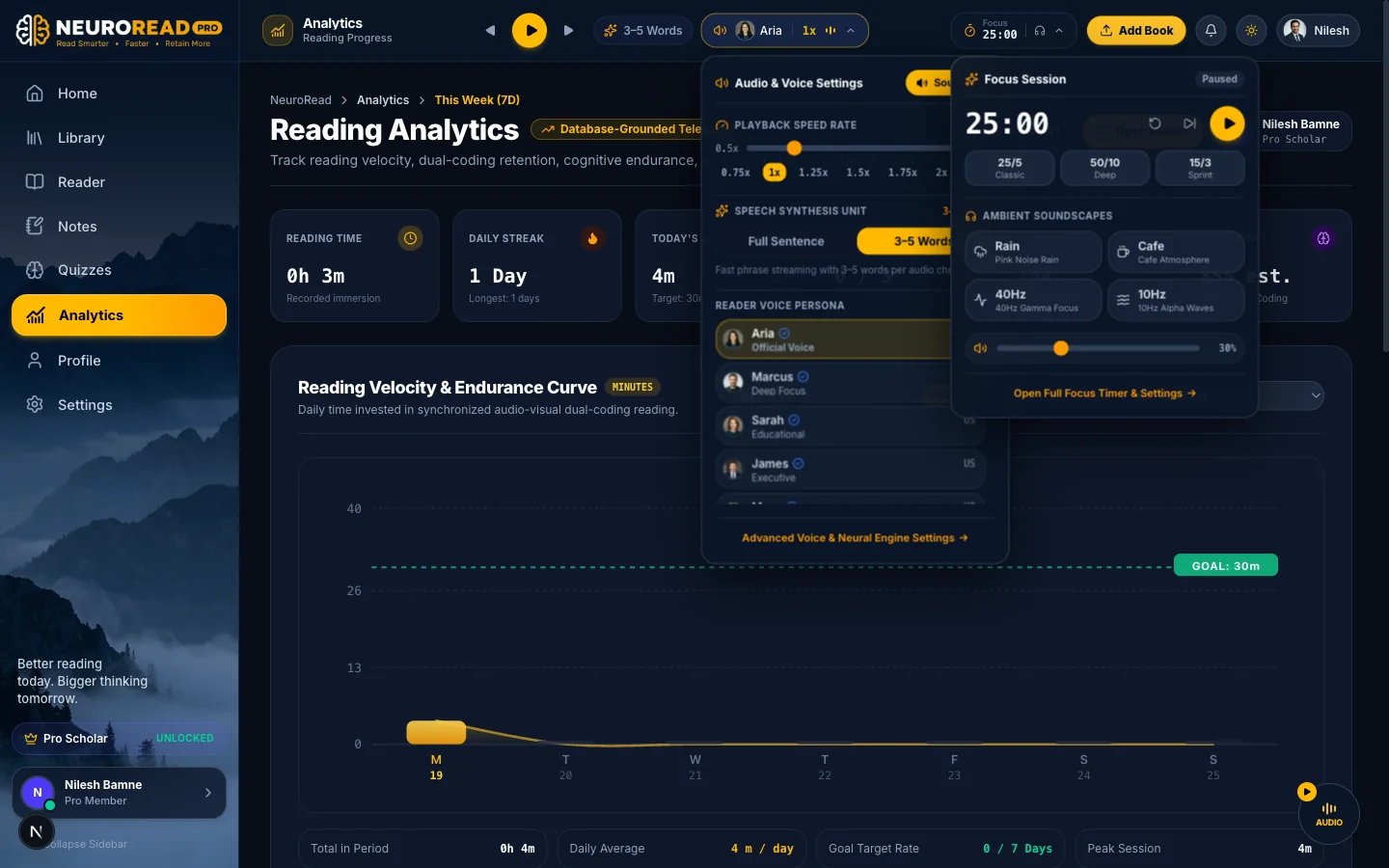
How NeuroRead Pro Enhances Ollama Phonon
NeuroRead Pro doesn't just play audio; it transforms local speech synthesis into a complete Bimodal Learning Workstation:
- Saccadic Highlighting Sync: NeuroRead Pro decodes Phonon's audio stream in the browser Web Audio API, calculating syllable-accurate timings to guide your eyes word-by-word in real time.
- Instant Silent Heartbeat: The app automatically pings
http://localhost:11434/api/tagsevery 5 seconds. When you start or stop Ollama, the UI reflects availability without needing a page refresh. - Fail-Safe Fallback: If you take your Mac on an airplane and forget to launch Ollama, NeuroRead Pro automatically falls back to its built-in in-browser Kokoro-82M ONNX engine so your reading never gets interrupted.
- Remote Host Support: If you run Ollama on a Mac Studio, Mac mini, or home server in your home network, simply update the Ollama URL in Voice Settings to point to your server IP (e.g.,
http://192.168.1.120:11434).
Start Reading with Ollama on Mac
By bringing Gradium Phonon to Apple Silicon, Ollama and NeuroRead Pro provide the ultimate reading experience: natural, human-grade neural voices, zero cloud data leakage, and complete freedom from subscription fees.
Ready to supercharge your reading? Launch the NeuroRead Pro workspace and connect your local Mac today!